How to design your card
Colors, logo, stamp icon and, from Professional, a strip with your own artwork.
-
1
Open More → Card. At the top you see the pass exactly as your customers see it.
-
2
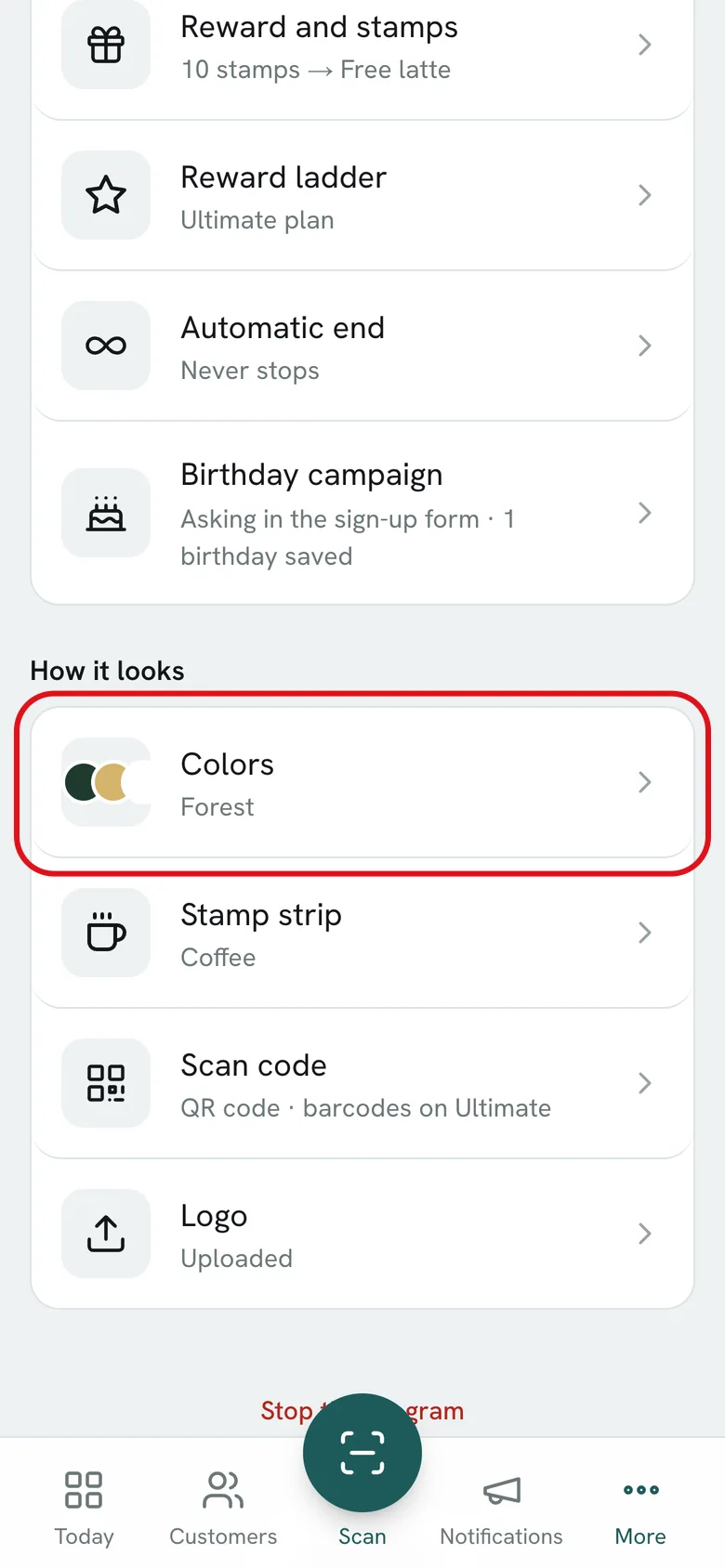
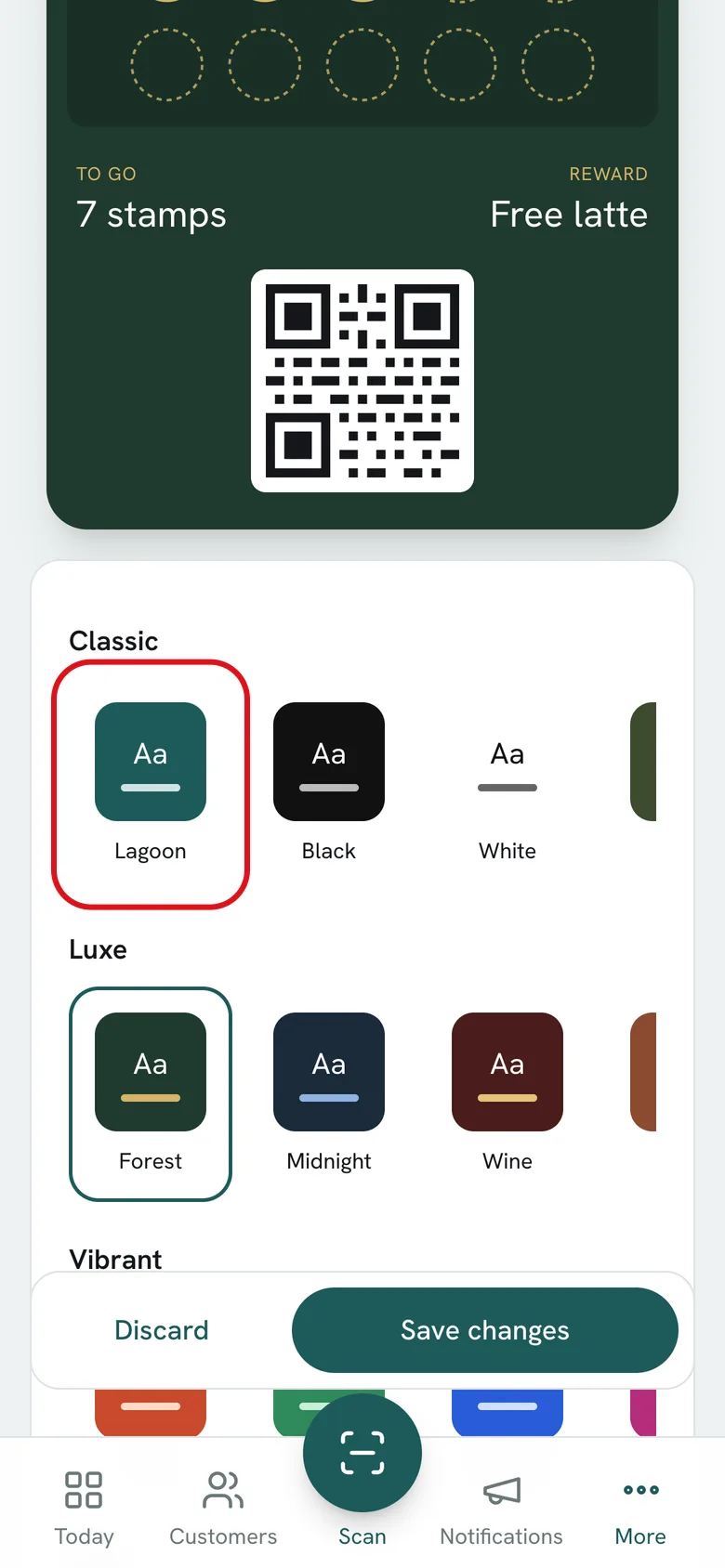
Tap Colors: pick a ready-made style or tap Custom and set Background, Text and Labels. You can paste your brand color code, like #1F1F1D.
-
3
Tap Logo and upload a square PNG or JPG with a solid background. It shows on the pass and in notifications.
-
4
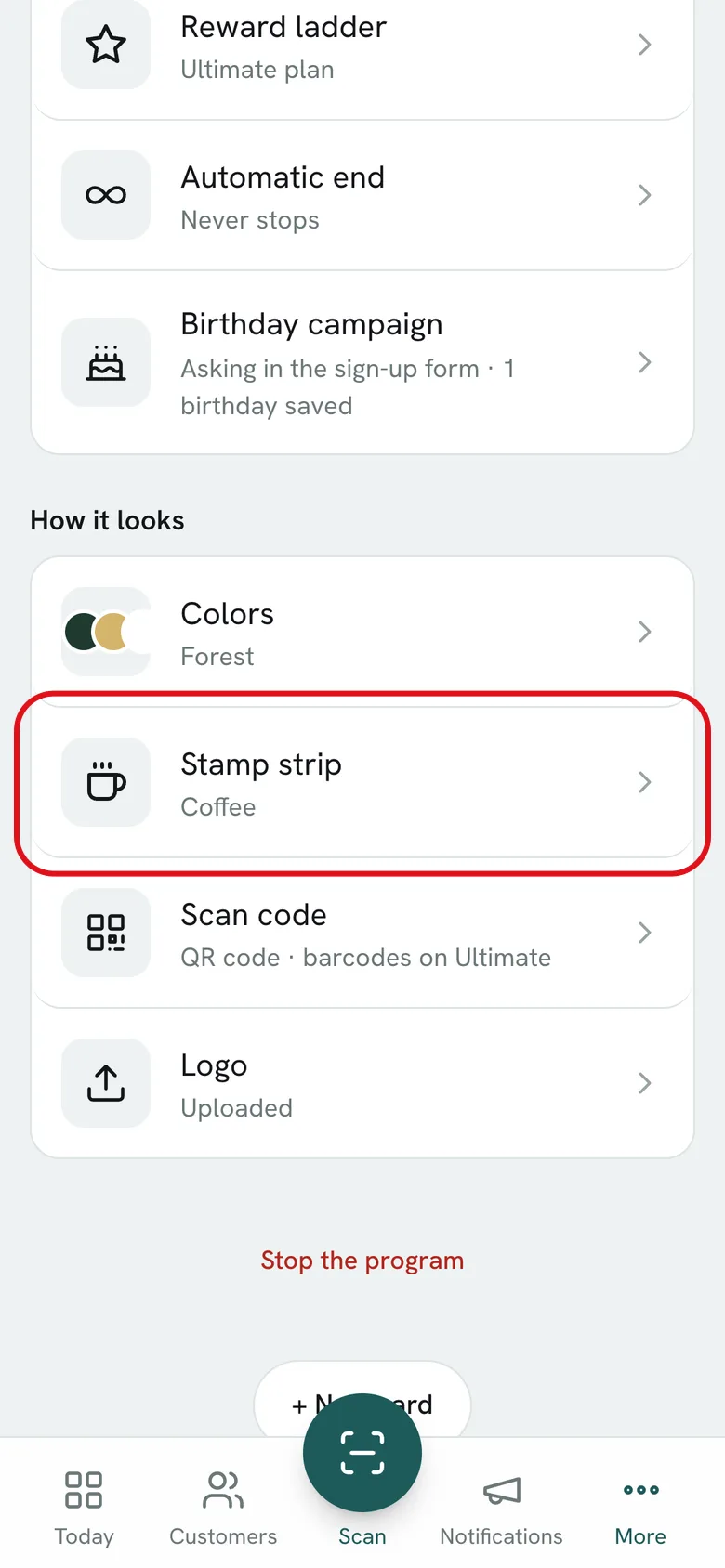
Tap Stamp strip and choose the icon for each stamp.
-
5
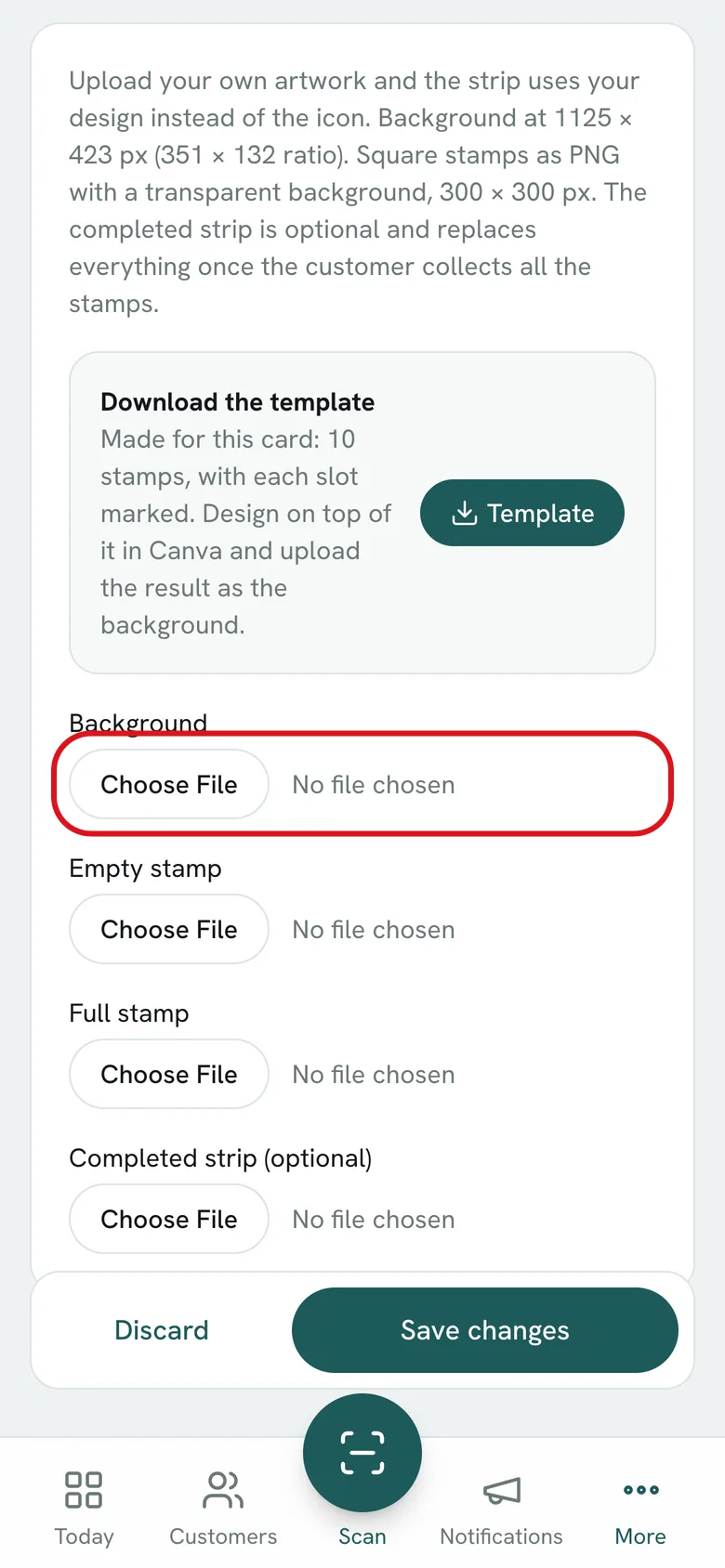
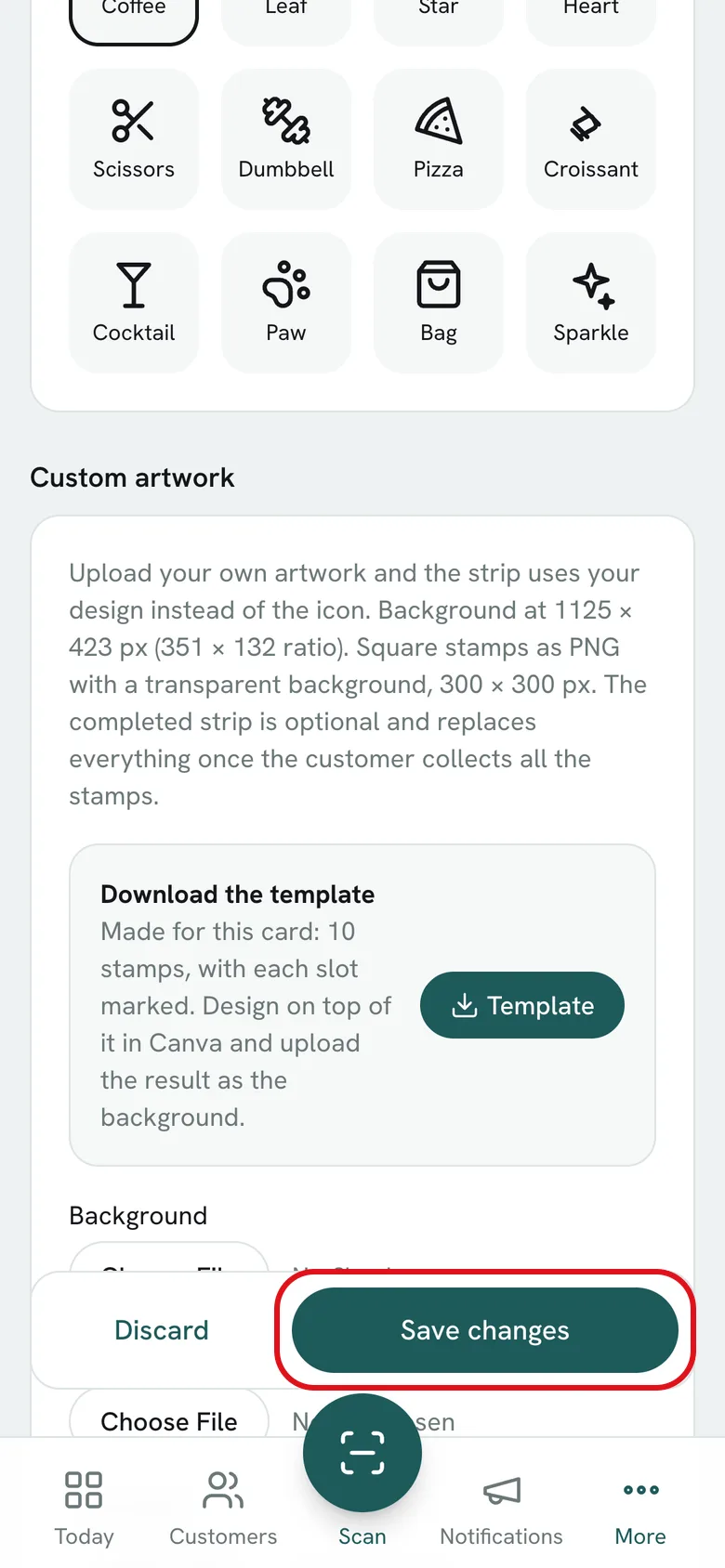
From Professional, under Custom artwork you upload your background (1125 × 423 px), the empty stamp and the full stamp (transparent 300 × 300 px PNGs). Tap Template to download your stamp grid and design on top of it in Canva.
-
6
Tap Save changes. All your customers' passes update on their own, nothing to resend.
What if…?
How do I change the goal or the reward?
In More → Card → Reward and stamps. Changing them also updates passes that are already installed.
What's the completed strip?
It's optional: an image that replaces the whole strip once the customer collects every stamp.
How do I go back to the icon?
In Stamp strip, check Go back to the icon and delete the artwork, then save.
Who can change the design?
Only an Admin.