How to send a notification
Write it in 20 seconds and it lands on your customers' phone screens.
-
1
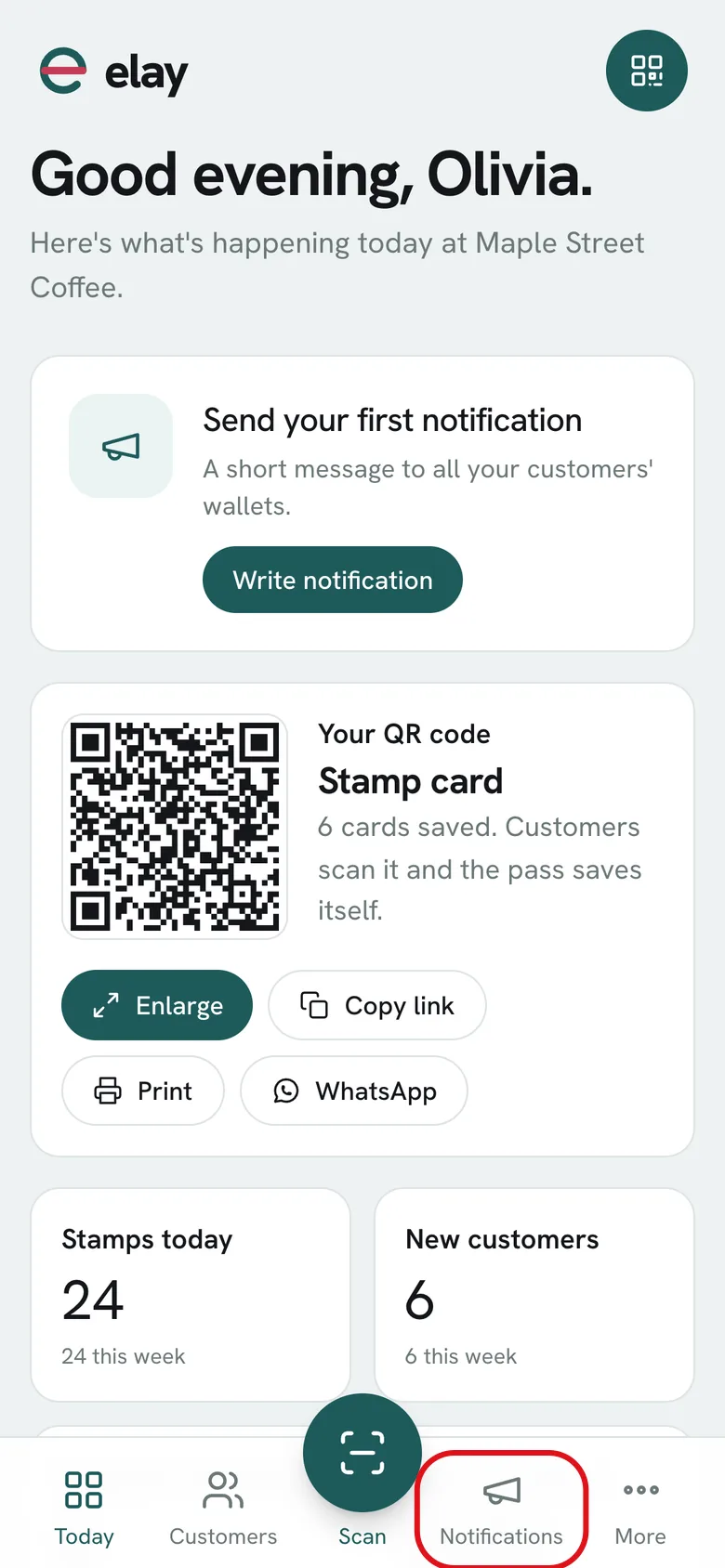
Tap Notifications in the bottom bar, then Write a notification.
-
2
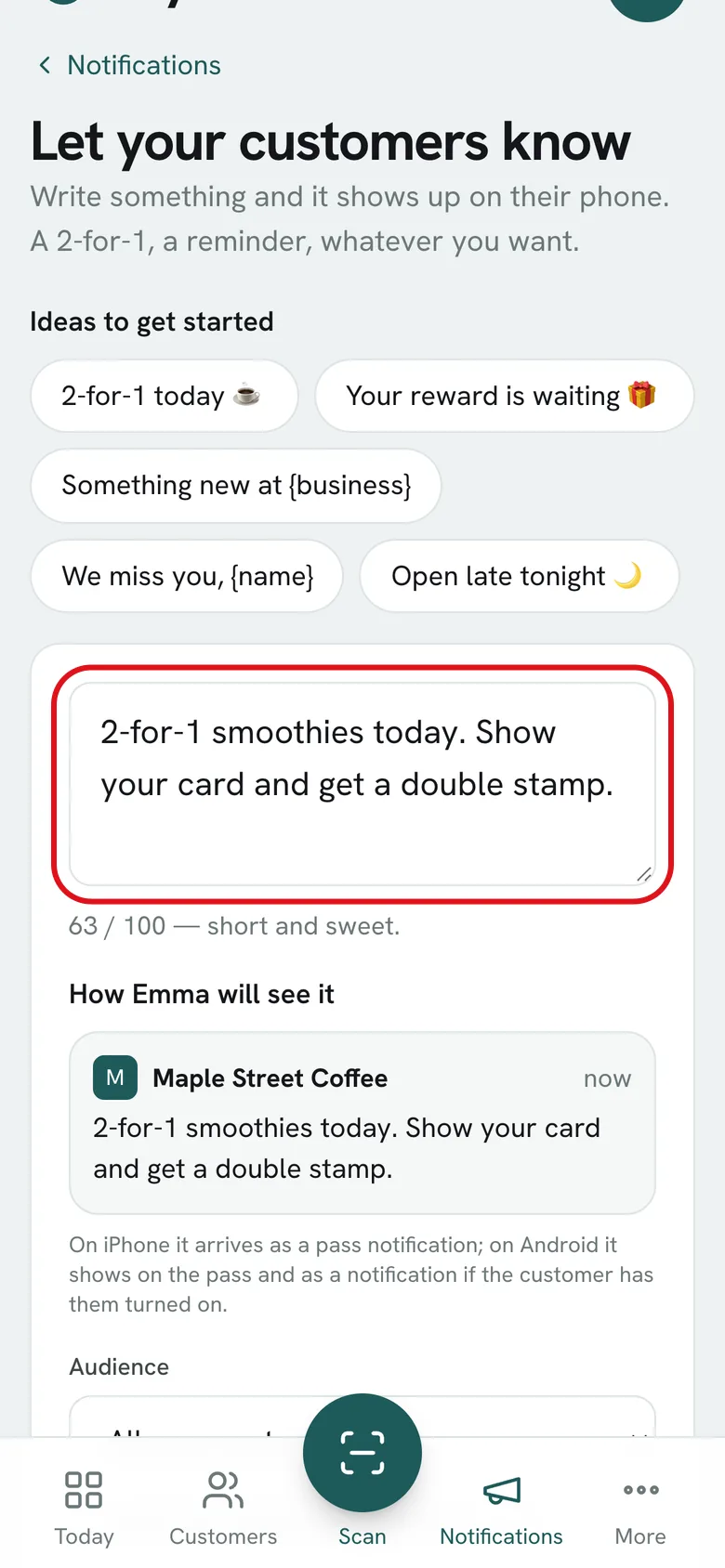
Write your message like a text: 100 characters max. Use {name} for each customer's name and {business} for your business name.
-
3
Check the preview: that's how each customer will see it.
-
4
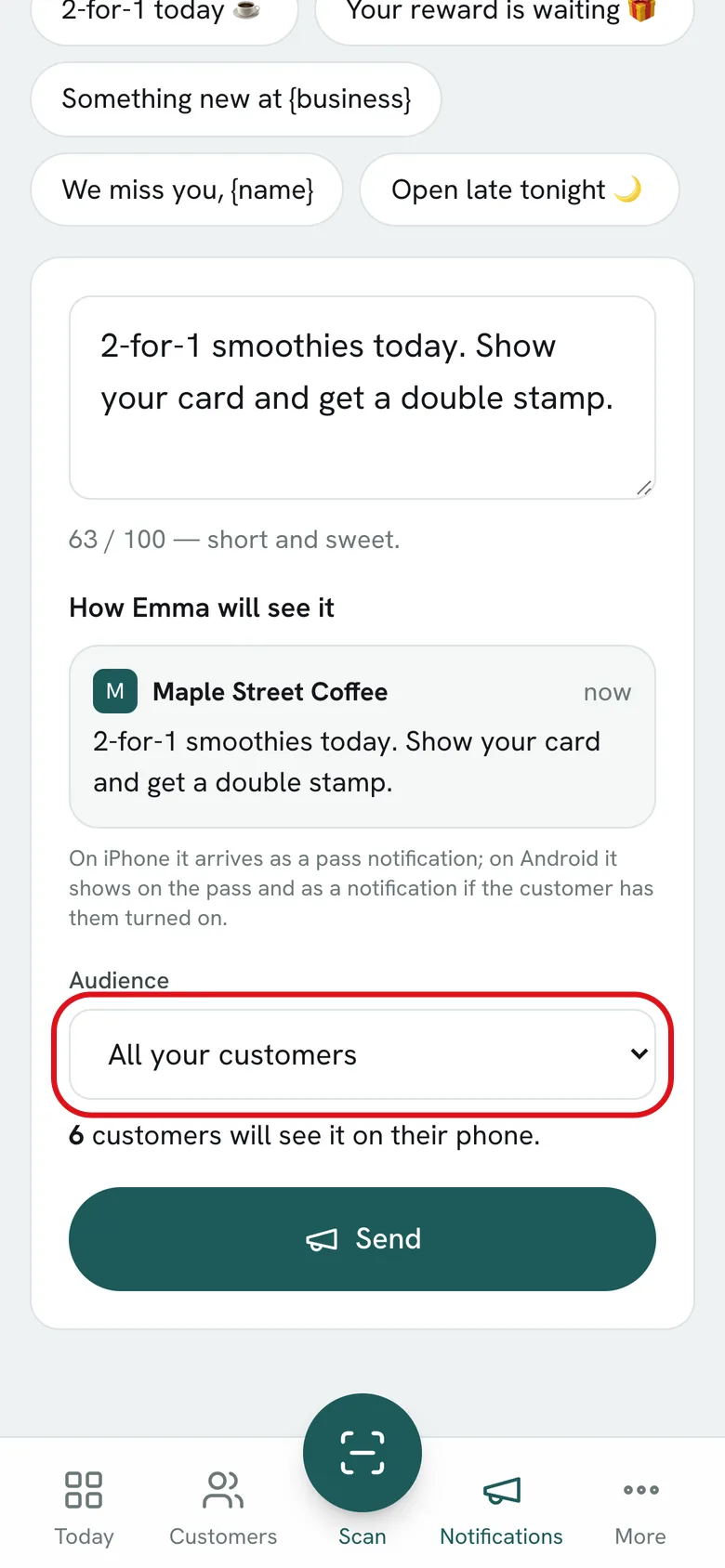
Under Audience, choose who gets it. Below, you see how many customers will receive it.
-
5
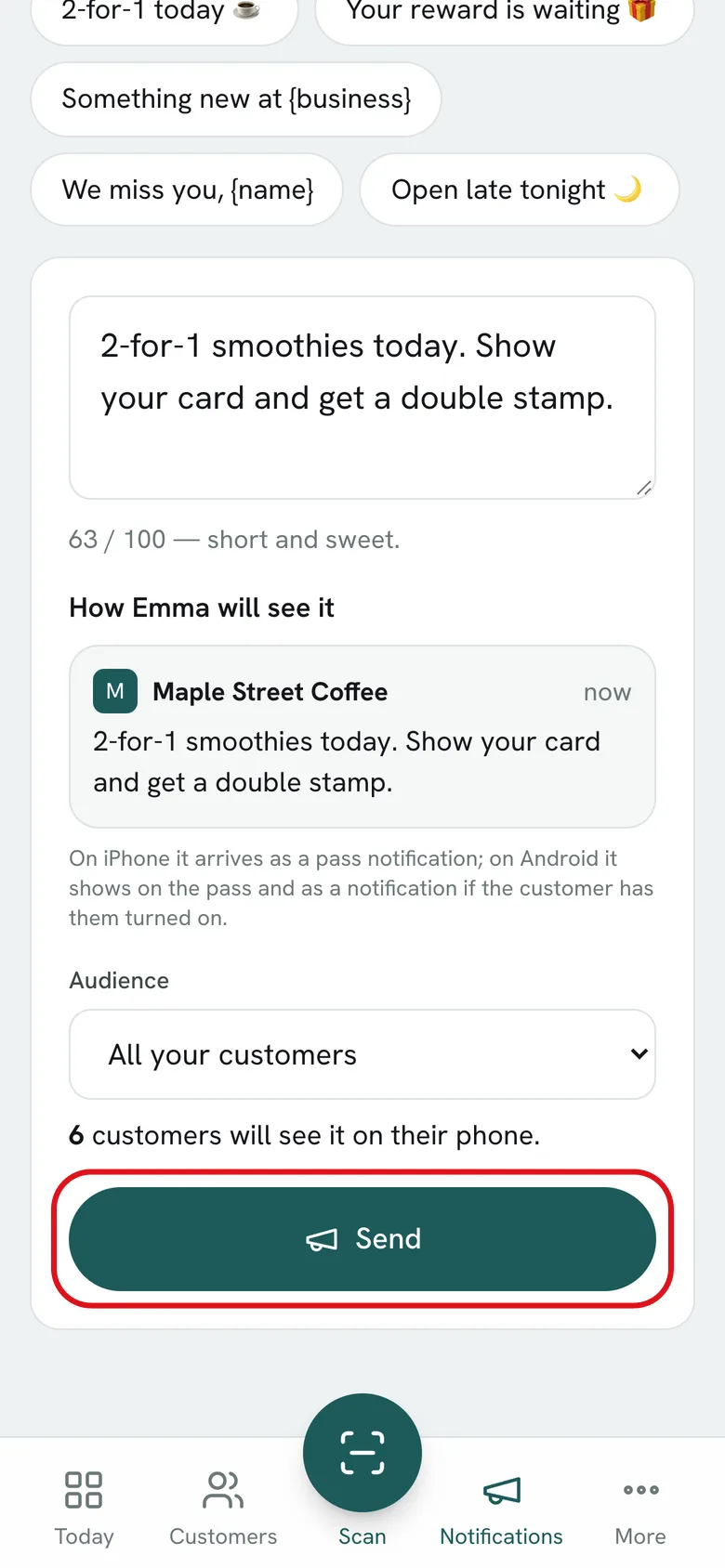
Tap Send. It goes out right away and stays in your Notifications history.
What if…?
How does it reach them?
On iPhone, as a notification from the pass. On Android it shows on the pass and as a notification if the customer has them turned on.
How often can I send?
On Growth you wait 24 hours between bulk sends; the dashboard shows how long is left. From Professional on, there's no wait.
Do automatic notifications count toward that wait?
No. Welcome, reward ready, birthday and review notifications don't count.
Can I schedule it for another day?
No, it goes out the moment you tap Send.